
Credit: Gameplay With Controller
guideHow-To Guidesarc-raiders
How to Turn Off Your Backpack Light in ARC Raiders 2.0
October 14, 2026·3 min read
ARC Raiders 2.0 introduces an Emissive toggle that lets players disable illuminated backpack details through the customization menu.
The ARC Raiders 2.0 Frozen Trail update finally lets players switch off the lights built into their backpacks. Embark Studios added an Emissive toggle for backpacks with light sources, allowing you to remove the glow before heading into a raid.
The setting is part of the cosmetic customization menu rather than the normal gameplay options. You can also use the same area to change which backpack your Raider is wearing.
How to Turn Off the Backpack Light
You need to change the setting before entering a raid. From the main menu, follow these steps:
- Open the Raider menu.
- Select Customization in the bottom-left corner.
- Choose the Style tab at the top of the screen.
- Select Backpack from the menu on the left.
- Choose the backpack you are using.
- Find Emissive and switch it to Off.
The change appears immediately on the character preview. Switching Emissive back on restores the backpack's glowing elements, so you can easily compare both versions before deploying.
The location and size of the light depends on the backpack. Some have obvious illuminated sections, while others use smaller glowing details.

Which Backpacks Can Turn Their Lights Off?
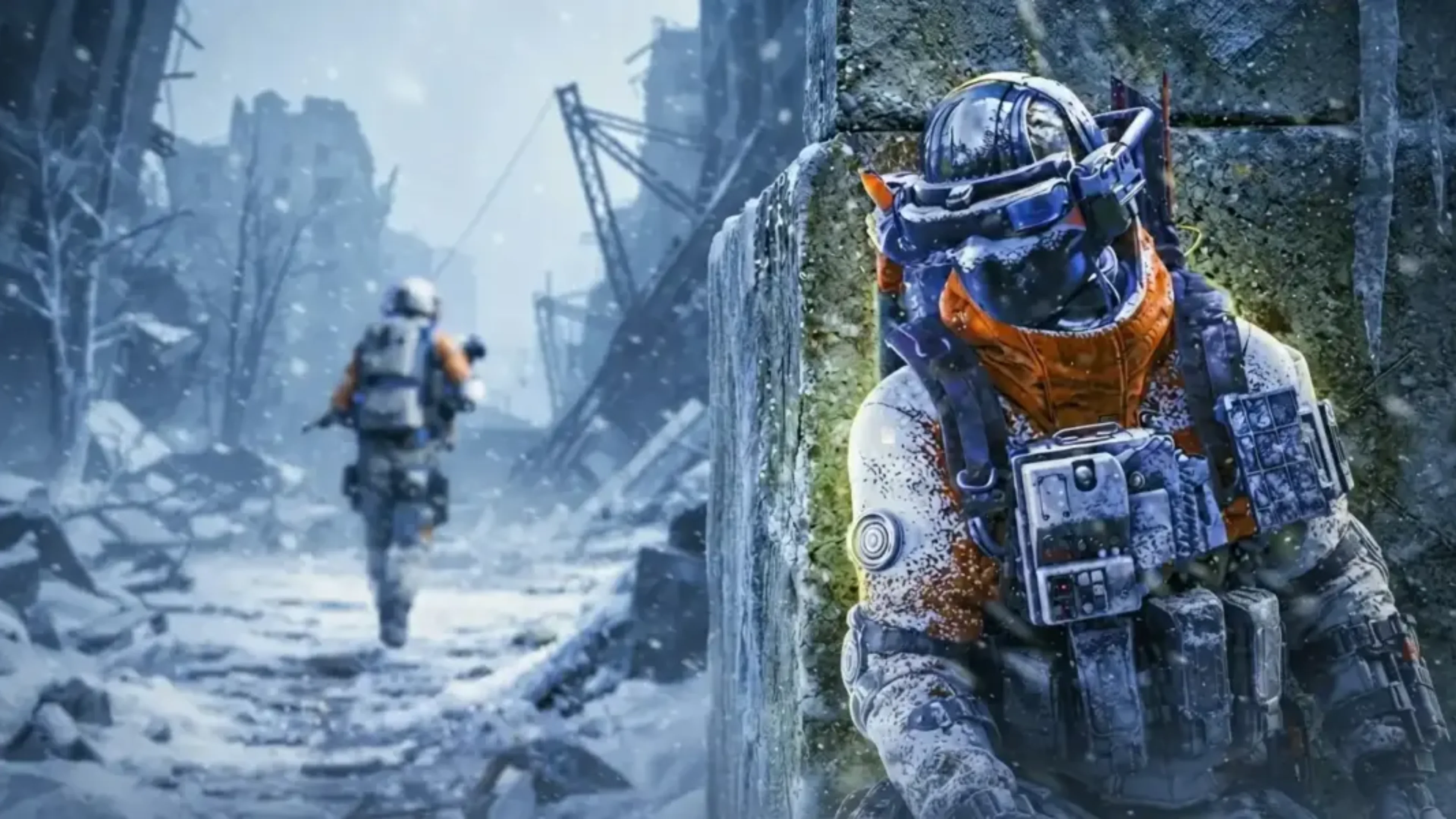
The Emissive setting only applies to backpacks that actually contain a light source. If the backpack you have selected does not use illuminated elements, there is nothing for the option to disable.
Embark added the feature as part of the cosmetic changes in Frozen Trail 2.0. You do not need to unlock an additional skill or purchase a special upgrade to use it on a compatible backpack.
The setting is also cosmetic rather than a separate piece of equipment, so turning the light off does not change your backpack's inventory capacity or other gameplay statistics.
How to Change Your Backpack's Appearance
The Backpack section under Raider > Customization > Style is also where you can switch between backpack cosmetics you have unlocked. Select another available backpack to preview how it looks on your Raider before equipping it.
Some cosmetics have additional visual options, with Emissive now acting as one of those toggles for illuminated backpacks. The preview updates as you make changes, letting you see the final appearance before leaving the customization screen.
Turning the light off can also have a practical advantage. Bright backpack details can make your Raider easier to notice in dark buildings or nighttime environments, so disabling Emissive may help when trying to remain less visible.
The downside is that the glow can also make your own character easier to identify in particularly dark areas. Since the option can be changed whenever you return to the customization menu, you can switch it on or off depending on how you want to play your next raid.

ARC Raiders is a multiplayer extraction adventure, set in a lethal future earth, ravaged by a mysterious mechanized threat known as ARC. Enlist as a Raider and scavenge the surface to thrive in a desolate world. But beware of the machines. Beware of Raiders preying on others. AR
Released
October 30, 2025
Developer
Embark Studios
Publisher
Embark Studios
Systems


Tagged In
ARC RaidersEmbark StudiosFrozen Trail
Discussion
0We want to hear from you. Share your perspective in the comments below, and please keep the conversation respectful.
Log in to join the discussion - vote, reply, and share your take.
Log In